On April 7, 2026, Cirrus Labs announced that they are joining OpenAI's Agent Infrastructure group. As a result, Cirrus CI will cease all operations on June 1, 2026, and Cirrus Runners is no longer accepting new customers. If you have been relying on Cirrus Runners for your macOS GitHub Actions workflows, now is the time to plan your migration.
In this guide, we will walk you through migrating your macOS CI/CD pipeline from Cirrus Runner to a self-hosted GitHub Actions runner on OakHost. Because Cirrus Labs' macOS runner images are publicly available as OCI images, you can reuse the exact same build environment you have today as a drop-in replacement.
Migrating to OakHost
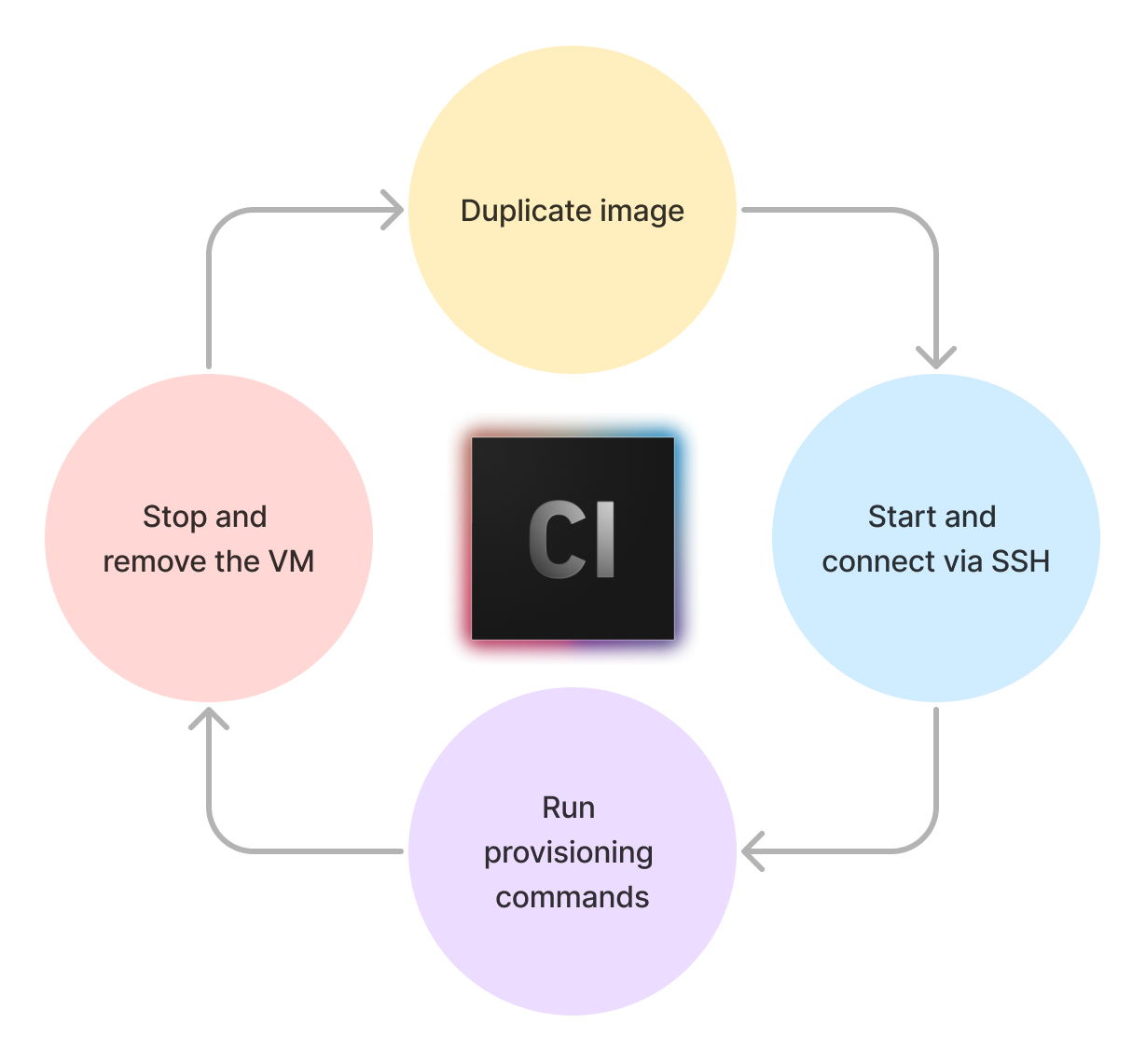
The simplest path is to replicate the Cirrus Runners setup directly on OakHost: run each CI job inside a fresh, ephemeral macOS virtual machine using the same OCI images that Cirrus Runners used. This approach keeps your build environment identical to what you have today.
Two open-source tools make this easy:
- Tart — a CLI tool by Cirrus Labs that creates and runs macOS VMs
on Apple Silicon using Apple's native Virtualization.framework. Tart images are OCI-compatible, so you can
pull the exact same
ghcr.io/cirruslabs/macos-runnerimages directly. - Cilicon — a macOS app that automates the full runner lifecycle on top of Tart: it clones the VM image, boots it, registers an ephemeral GitHub Actions runner inside the VM, waits for a job, tears down the VM, and repeats. Every job gets a pristine environment.
For now, we will be using Cilicon as it provides ephemeral runners out of the box, and is easy to set up.
Step 1: Order Your OakHost Mac mini
Check out our straightforward pricing page to find the right hardware for your team. You can order the configuration right through our website, and provisioning only takes a few seconds.
You will get access to a fully dedicated Mac mini, which we will use to run your CI jobs in ephemeral macOS virtual machines.
Step 2: Connect to Your Mac
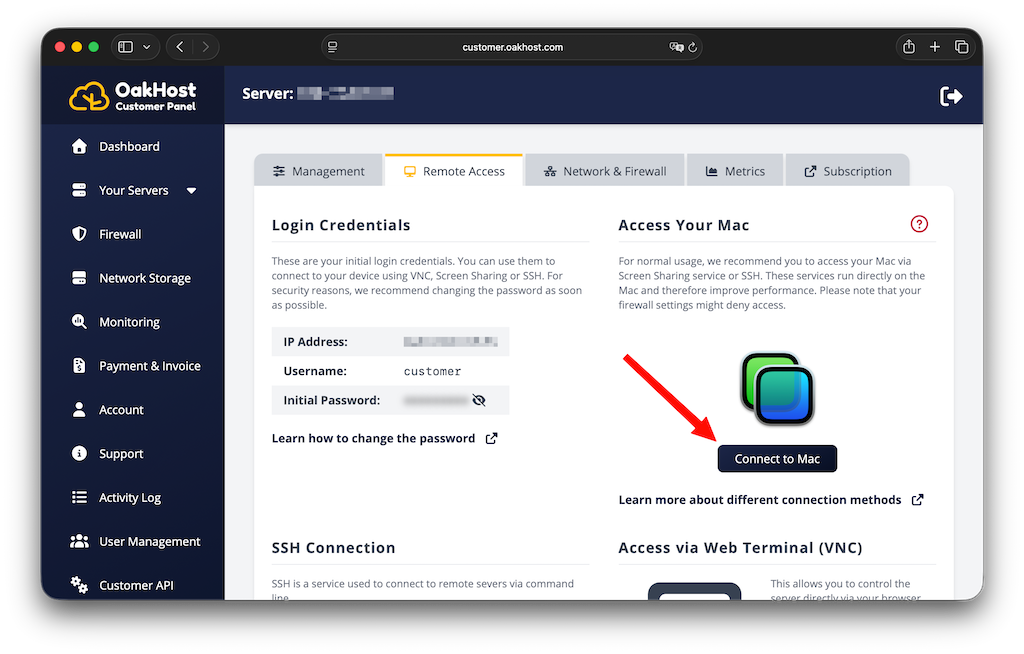
You can manage your Mac using either SSH from your terminal or macOS Screen Sharing for a full graphical desktop experience. Since we will be installing Cilicon, connect using Screen Sharing:
Click the Connect to Mac button in the Customer Panel and authenticate with the credentials displayed on the page.
Step 3: Set Up Cilicon
Cilicon automates the runner lifecycle, so you do not need to manually boot VMs or register runners.
Download the latest Cilicon.app from the Cilicon releases page
and move it to your /Applications folder.
Cilicon uses a GitHub App to register ephemeral runners with your organisation, so you will need to create one first.
Create a GitHub App
- In GitHub, go to your organisation's Settings → Developer settings → GitHub Apps → New GitHub App.
- Give it a name (e.g.,
OakHost CI Runner) and disable the Webhook option. - Under Permissions, set Self-hosted runners to Read & Write.
- Click Create GitHub App, then scroll down to generate a private key and download the
.pemfile. - Note the App ID shown on the app's settings page.
- Install the app on your organisation.
Copy the private key file to your OakHost Mac, for example to ~/github.pem.
Configure Cilicon
Create the configuration file at ~/cilicon.yml:
source: oci://ghcr.io/cirruslabs/macos-runner:tahoe
provisioner:
  type: github
  config:
    appId: YOUR_APP_ID
    organization: your-github-org
    privateKeyPath: ~/github.pem
Replace YOUR_APP_ID and your-github-org with your values. The source should match the image tag your
workflows were using on Cirrus Runners.
Launch Cilicon
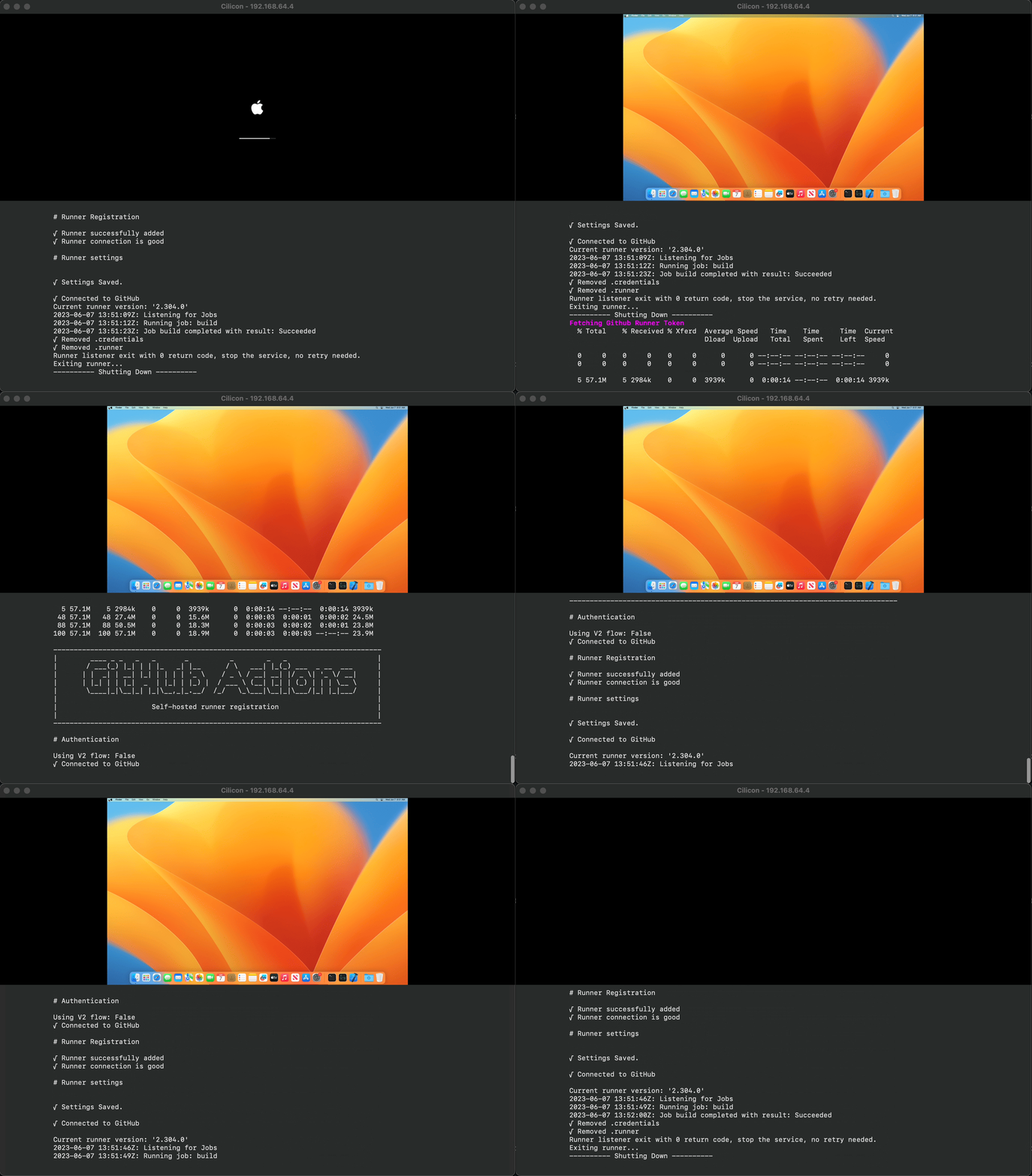
Open Cilicon.app on your OakHost Mac via Screen Sharing. It will read ~/cilicon.yml, clone the VM image,
boot a virtual machine, and register an ephemeral GitHub Actions runner inside it. Once the runner appears
as Idle in your GitHub organisation's runner list, it is ready to accept jobs.
To keep Cilicon running after you close Screen Sharing, configure it to launch at login via System Settings → General → Login Items.
Lastly, set up Automatic Login in System Settings → Users & Groups → Login Options to automatically launch Cilicon at login.
Step 4: Update Your Workflow Files
With your runner online, the only remaining change is a one-line update in each workflow file. Replace the Cirrus Runners image reference:
runs-on: ghcr.io/cirruslabs/macos-runner:tahoe
With the self-hosted runner labels:
runs-on: [self-hosted, macOS, ARM64]
Everything else in your workflow YAML stays exactly as it is. The build environment is identical because you are running the same VM image.
Conclusion
Migrating from Cirrus Runner to a self-hosted runner on OakHost is a straightforward process. By using Tart and Cilicon, you can run the exact same Cirrus macOS runner images on your own dedicated Apple Silicon Mac mini, with every job isolated in a fresh ephemeral VM — just like before. For most teams, the workflow change amounts to a single line per YAML file.
If you have any questions about getting set up or choosing the right plan for your team, feel free to reach out to our support team.


